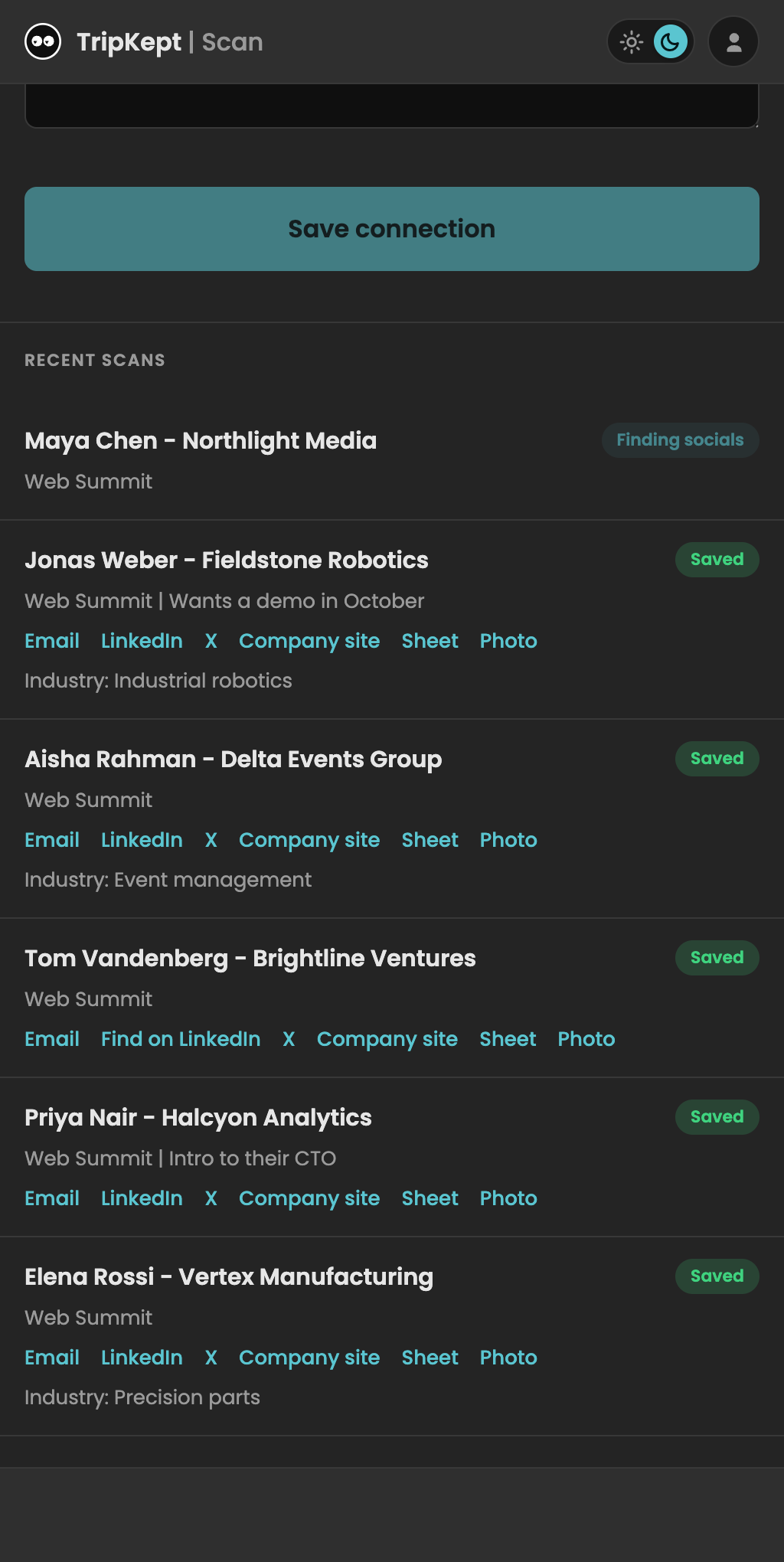
From card to contact
- Connect Drive. BusyTrip uses access limited to app-created or explicitly shared files.
- Scan the card. Take a photo or upload one. Add an event label and conversation notes.
- Review the result. Check the contact and open its linked Google Sheet to correct extracted fields.
What gets saved
A row in your Connections sheet and the original photo beside it.
- Contact
- Name, title, company, email, phone
- Context
- Projects and conversation notes
- Public lookup
- Profile links, company website, industry
- Source
- Who scanned it, scan date and photo link
Your sheet stays yours
Sort by event, share with a colleague, or export to a tool that accepts spreadsheets. Canceling BusyTrip does not remove files already saved to Drive.
AI can misread details and public-profile matches are not guaranteed. Review the results. See our scan test.
10 free scans a month. No card required.
Questions
Does it need the Google Sheets app or an add-on?
No. BusyTrip writes to the sheet through the Drive API. You open the sheet in any browser or the Sheets app as usual.
Can I use my own existing spreadsheet?
Not yet. BusyTrip creates and maintains its own Connections sheet so the columns stay predictable. You can copy or link its rows into any other sheet.
What happens to the photo?
It is filed in your BusyTrip folder in Drive and linked from the row. Completed originals are removed from our server after filing. Failed or duplicate originals can remain for retry for up to 7 days; individual extracted scan history remains for up to 30 days. Shared team history remains until the team is deleted. You can delete it sooner in the app.
Does it work on iPhone and Android?
Use BusyTrip in Safari or Chrome. With the scanner already loaded, supported photo captures can queue on your device. Keep the queued data until it uploads. Extraction, voice summaries and destination delivery need a connection; check the saved status before closing the app.
How much does it cost?
10 scans per person each month are free. Unlimited is $6.99 per person per month or $49.99 per person per year, with a self-serve refund within 30 days.