BusyTrip / Guides / How to organize receipts in Google Drive

Guide

How to organize receipts in Google Drive so they are still findable at tax time

The structure matters more than the tool. Here is the one BusyTrip uses, and how to keep it by hand if you prefer.

The short answer: one folder per month named so it sorts, one file per receipt named vendor and amount, and one sheet per month with a row per receipt. File by the date on the receipt, not the day you scanned it. Everything else is optional.

The folder structure

  • Receipts / one top-level folder, shared with your accountant once.
  • Receipts / 9 September 2026 / one folder per month. Leading the name with the month number keeps the year sorted; spelling the month keeps it readable.
  • Receipts / 9 September 2026 / Invoices / Company card / optional split by what paid, if you need reimbursables separated.

The file naming rule

Name the file after what a human would search for: vendor, then amount, then date if you like. NS Rail 42.50 EUR 2026-09-03.jpg answers the question before the file is opened. Avoid the camera's IMG_4821.jpg; it is useless in a search and worse in a folder of two hundred.

The sheet

A folder of images is not a report. Keep a sheet per month with the columns Date, Vendor, Amount, Currency, Source, Note, Category and a link to the file. That sheet is what actually goes to the accountant; the folder is the evidence behind it.

File by receipt date

The single most common mistake is filing by upload date. Expense periods and VAT quarters follow the date on the receipt. If you scan last month's hotel bill today, it belongs in last month's folder and last month's sheet.

Keeping it up: by hand or with a scanner

By hand, the Google Drive app's built-in scan feature produces a decent PDF; you then rename it, move it to the month folder, and type the row. About a minute per receipt, which is why it stops happening in week three.

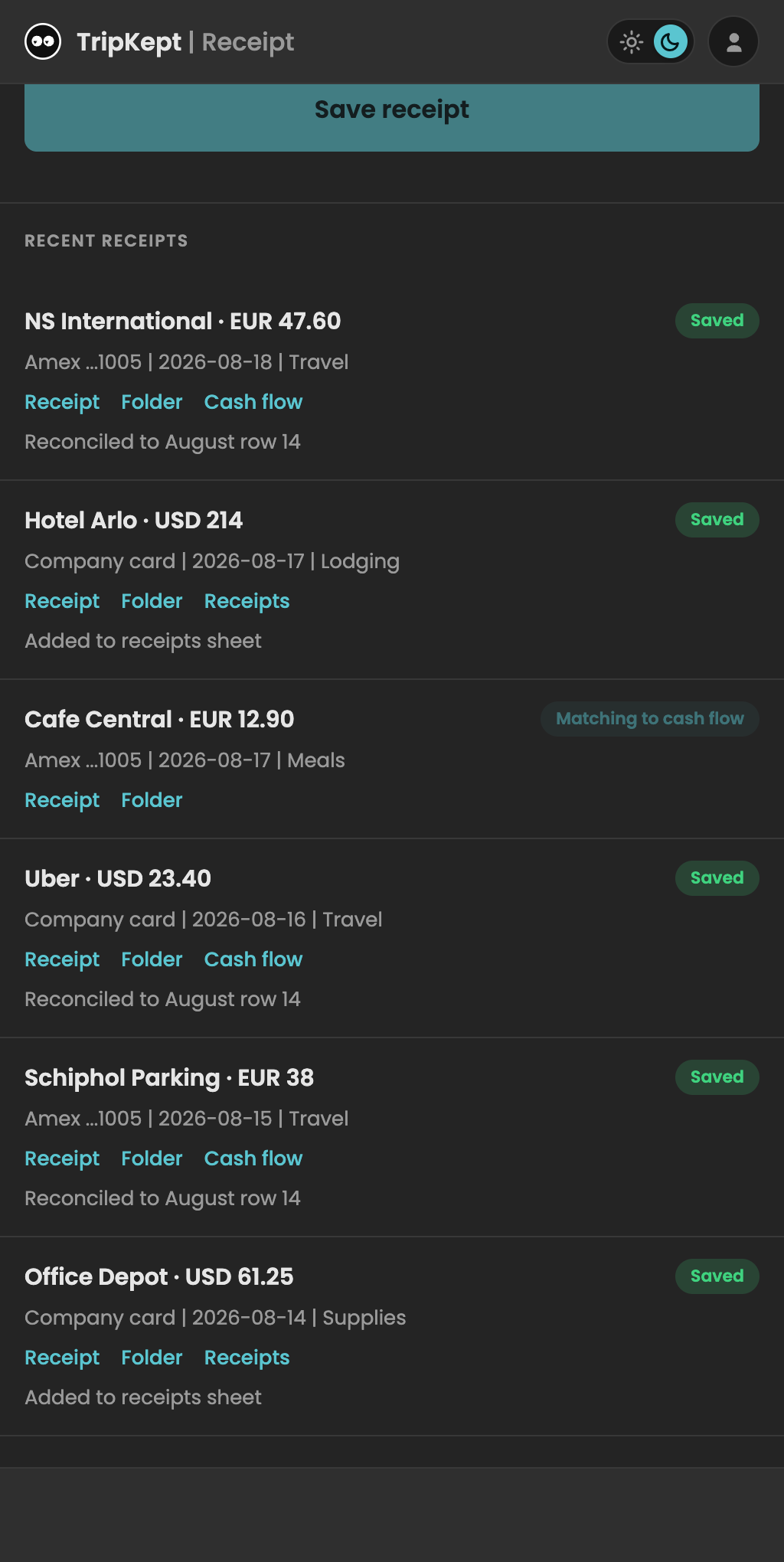
BusyTrip does exactly the structure above automatically: it reads the receipt, names the file, creates the month folder if needed, files by receipt date and appends the row. How the receipt scanner files into Drive shows the result. Ten receipts a month are free.

Try it on a real card or receipt

10 scans a month free, no card required. Results land in your own Google Drive.

Open the app

FAQ

Questions

Should I use one folder per client instead of per month?

Per month first, then split inside the month if you must. Accountants and tax periods work by month; clients are a filter on the sheet.

PDF or JPG?

Either. PDF is tidier for multi-page invoices; a phone photo is fine for a till receipt. What matters is the name and the row.

Can Google Drive search inside receipt images?

Drive indexes text in PDFs and, to a degree, in images. Do not rely on it for amounts; that is what the sheet is for.

How long should I keep them?

Follow your tax authority's rule; in the Netherlands it is seven years. Drive storage for a decade of receipt photos is trivial.